See what the model sees
Sovereign Shield 0.6.0 is live: an Inspect panel showing your prompt beside what the provider actually gets, plus API-key detection, custom terms and realistic stand-ins. Still entirely local.
Nine days ago I wrote about the first public build of Sovereign Shield, which had just reached the Chrome Web Store. It could already tell you something was happening — a small count above the chat box, listing what would stay on your machine when you pressed Enter. Fine, as far as it went. It still asked you to take the interesting part on trust.
0.6.0 went live today. The theme is verification.
That count now has an Inspect button. Click it and a panel opens beside the chat: your prompt on one side, the exact text the provider will receive on the other, every swapped span marked. No DevTools, no squinting at the network tab. If the guard has misread something, you see it before you send — and you can tell it to leave that value alone.
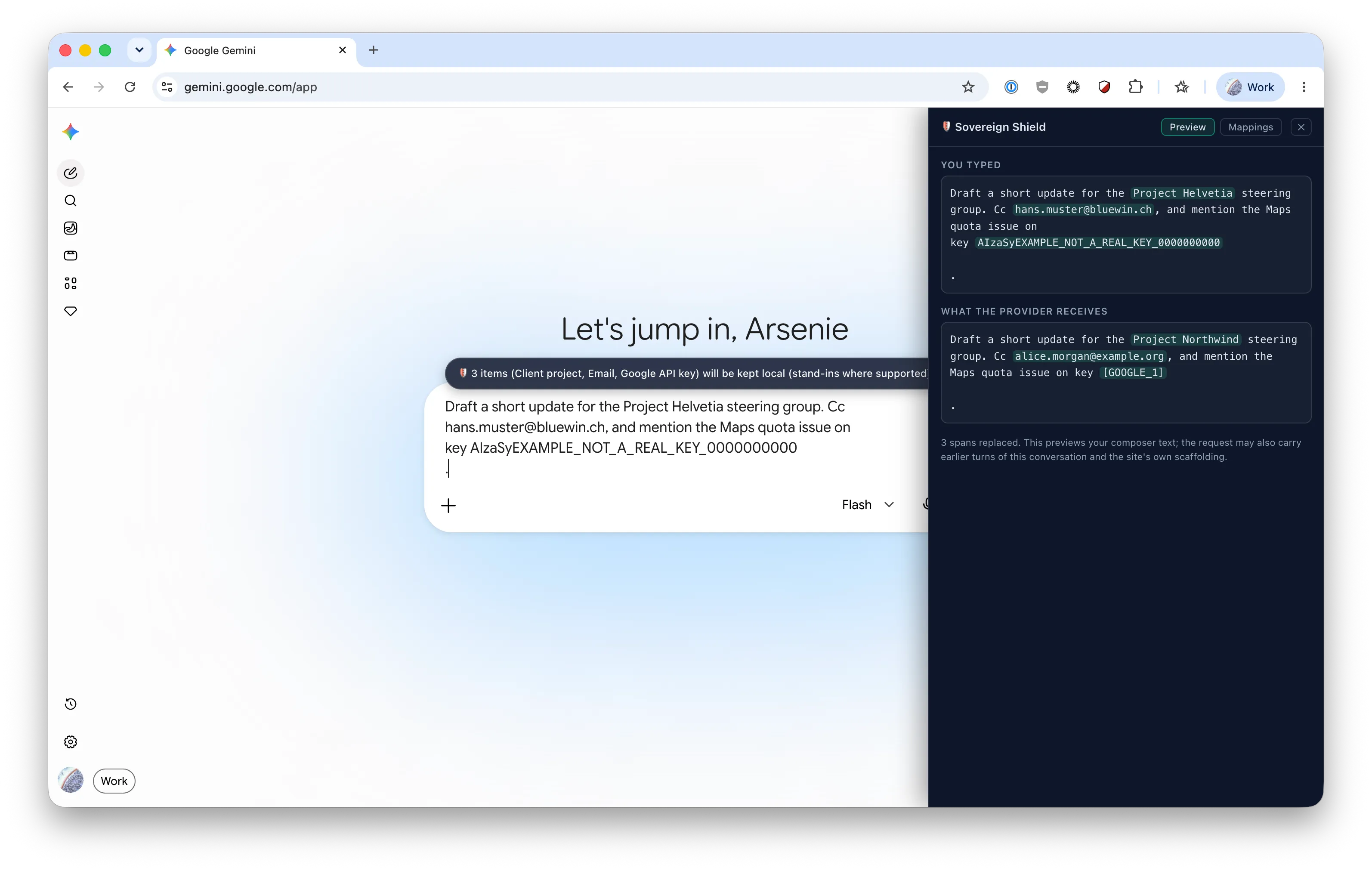
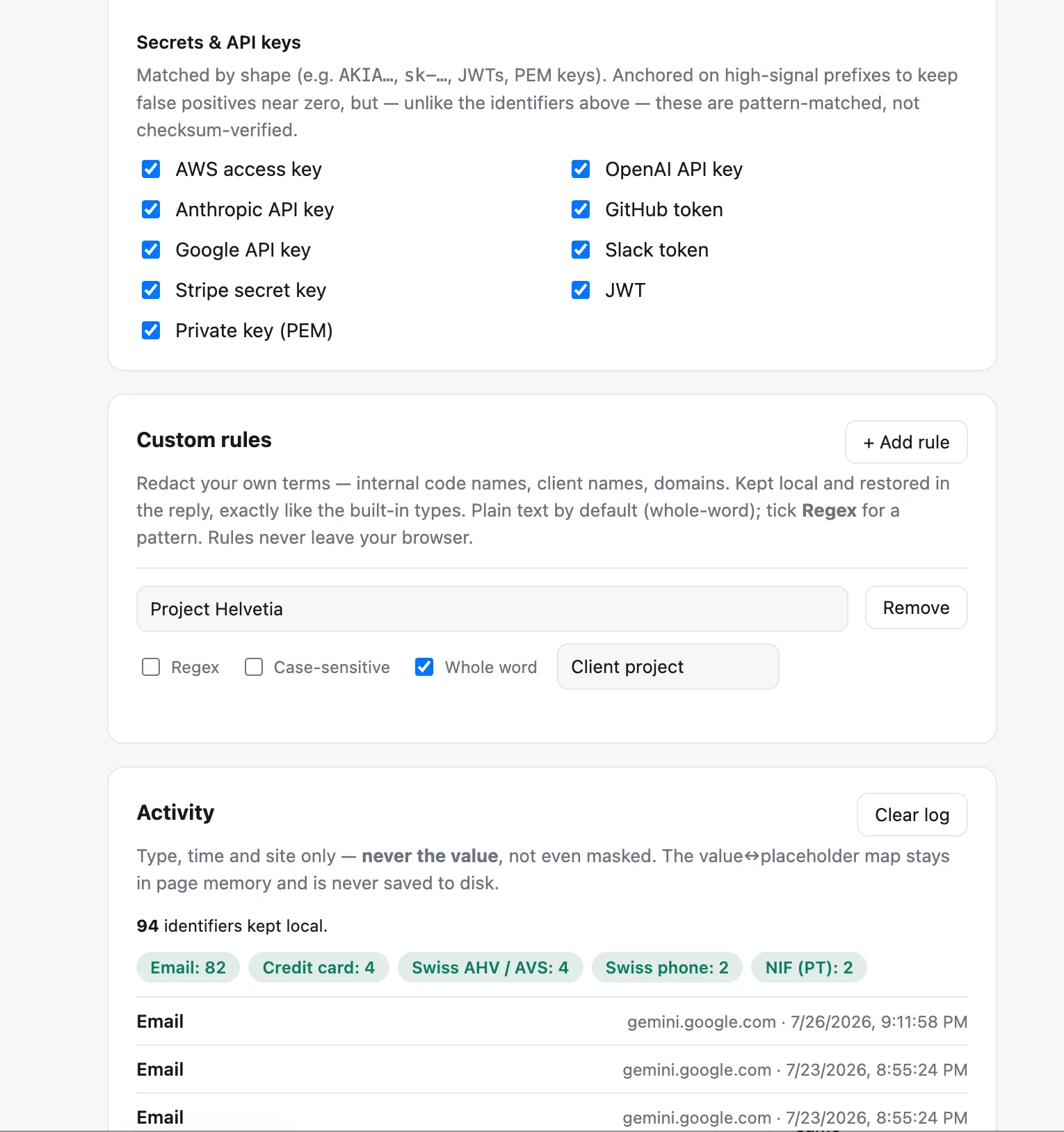
Coverage has widened past identity numbers, too. API keys and secrets now get caught: AWS, OpenAI, Anthropic, GitHub, Slack, Stripe, JWTs, PEM private keys. This is the class of thing developers actually leak. You paste a stack trace to ask what went wrong, and an access key rides along in the config dump nobody looked at twice.
Custom rules handle whatever’s left. Client names, internal code names, a domain you’d rather not say out loud — add them and they behave like any built-in type: redacted on the way out, restored on the way back. Plain text by default, or tick a box for a regular expression. They never leave your browser.
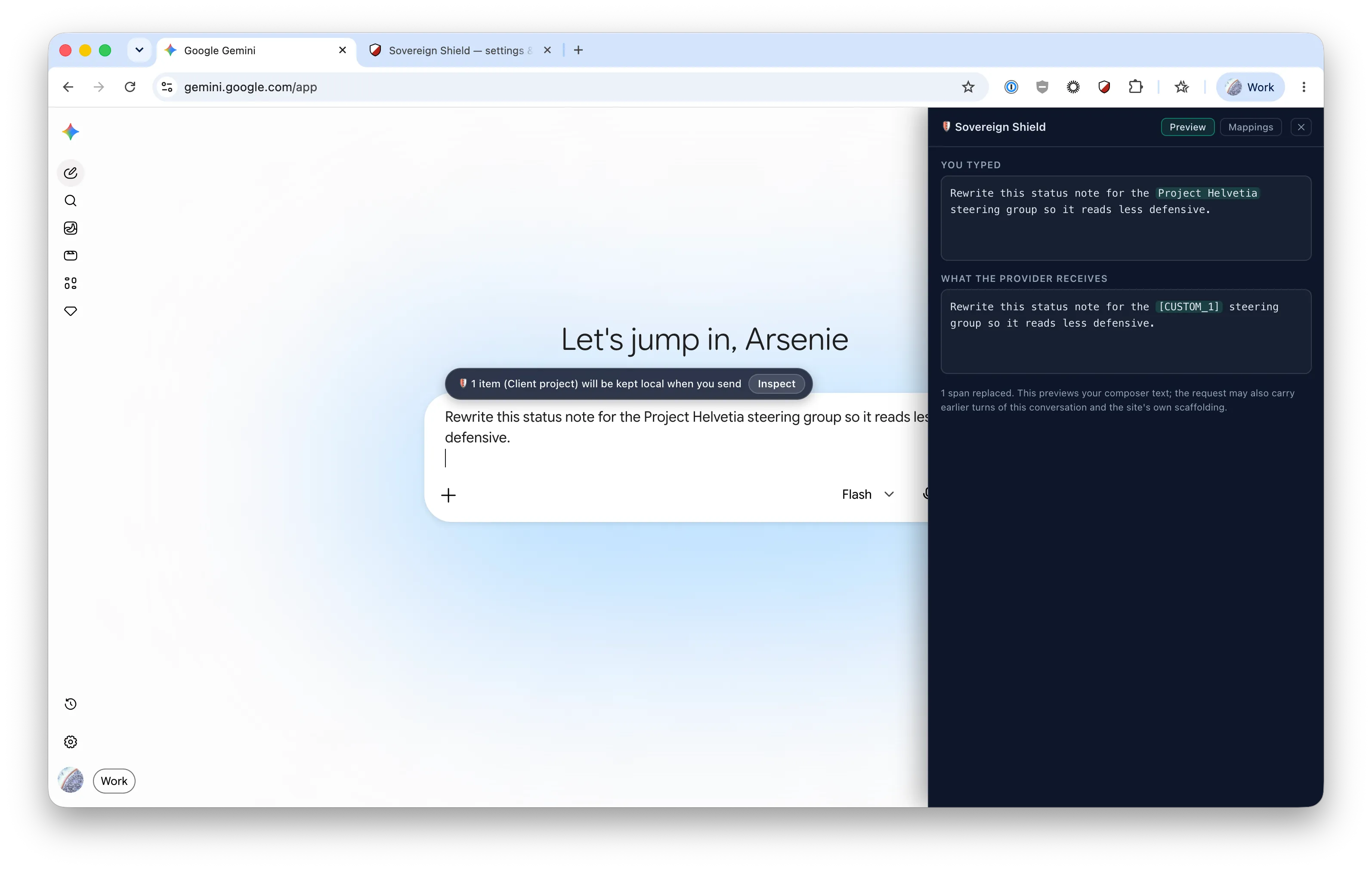
Then there’s smokescreen, which I went back and forth on for a while. Placeholders like
[CUSTOM_1] are honest, but they read badly, and models write worse drafts when a prompt is full of
brackets. So you can now send a realistic stand-in instead — a code name becomes something like
Project Northwind, the model writes naturally, and the real value comes back in the reply.
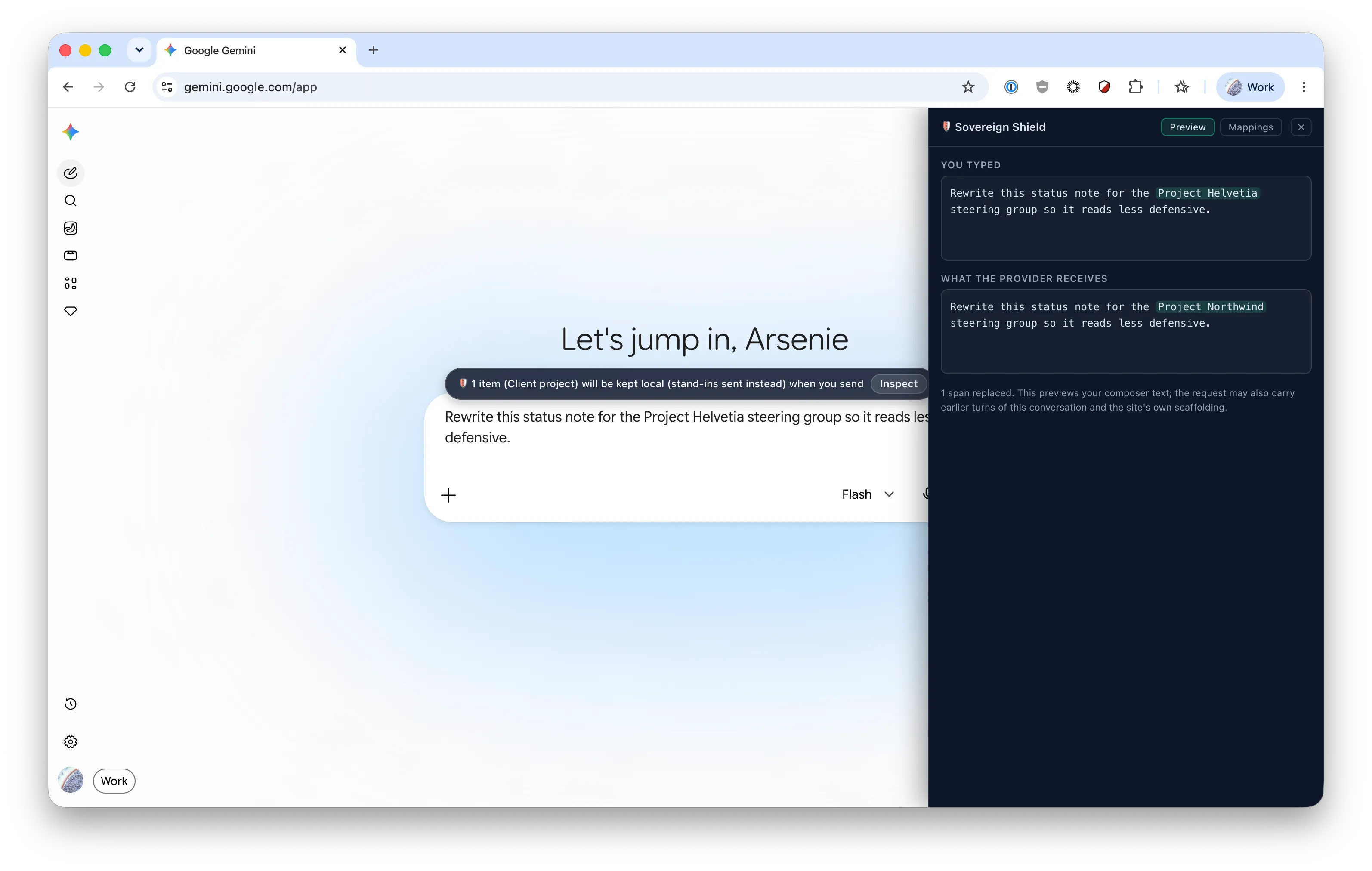
It applies to emails and your own terms only. Never to AHV numbers, IBANs, cards or secrets: a
checksum-valid fake could be some real person’s number, and inventing one of those is not a price
worth paying for a tidier draft. That’s why the API key in the first screenshot stays [GOOGLE_1]
while the name and the address turn into something you could read aloud. Off unless you turn it on.
Two smaller changes, both of which came from finding out I was wrong.
Copying a reply used to hand you the placeholder rather than the value. The sites serve their own markdown source when you hit Copy, and that never passes through the part of the code that restores things on screen. With brackets it was merely annoying — you’d notice. With smokescreen on it was worse: you’d copy a fabricated address, believing it real, and paste it into an actual email. Copy now matches what you’re looking at.
The guard also hooks specific endpoints on each site, and providers reshuffle their internal APIs without telling anyone. When that happens the hook stops matching and redaction quietly stops. The problem was never that it might break; it was that it broke silently. Now it says so when a message goes out uninspected.
Everything else is unchanged: no account, no API key, no server, no analytics. The map from real value to placeholder lives in your tab’s memory and is erased when you close it.
It’s free, and the source is on GitHub.
Add it to Chrome, or poke at the live detector first if you’d rather see the checks fire before you install anything.